
Ditch the Bastion Host without Compromising Local Terminal Experience
Learn how to replace your outdated Bastion Host with AWS SSM Session Manager. Close port 22, eliminate SSH keys, and achieve Zero Trust security on AWS.
format_list_bulleted
Table of Contents
27 sections
expand_more
If you have been working in AWS for a while, you are probably intimately familiar with the classic Bastion Host—also affectionately known as the "jump box."
For years, it has been the standard, go-to architectural pattern for accessing servers tucked safely away in private subnets. You spin up a tiny EC2 instance in a public subnet, expose port 22 to the internet, SSH into it, and then "jump" over to your actual application servers.
Old infrastructure habits die hard, but it is time for some candor: the public-facing bastion host has officially outlived its utility. In modern cloud environments, it is no longer a security best practice; it is a liability.
Think about the sheer amount of administrative overhead and risk involved with keeping a bastion host running:
- The SSH Key Nightmare: Distributing, tracking, and rotating
.pemfiles for a growing engineering team is a logistical headache. - Maintenance Burden: A bastion is still a server. That means your team is on the hook for patching its operating system, updating packages, and monitoring its health.
- The Attack Surface: Exposing port 22 to the public internet—even if restricted to a corporate VPN—means you are constantly fending off automated brute-force attacks and port scanners. If a single engineer's long-term SSH key is compromised, your gatekeeper is breached.
Fortunately, AWS has provided a modern, highly secure alternative that renders the jump box obsolete: AWS Systems Manager (SSM) Session Manager.
SSM Session Manager completely flips the script on how we handle server access. Instead of relying on network-centric security (like firewalls and open ports), it uses an identity-driven approach. By making the switch, your team gets to enjoy some massive upgrades:
- Zero Inbound Ports: You can completely shut down port 22. Your security groups can literally have zero inbound rules.
- No More SSH Keys: Access is granted dynamically through AWS IAM credentials and Multi-Factor Authentication (MFA).
- Built-in Auditing: Every session, command, and keystroke can be logged automatically for rock-solid compliance.
Let’s dive into how this architectural shift works, why it is a game-changer for your security posture, and exactly how you can implement it to finally retire your bastion hosts for good.
The Architectural Shift: Bastion vs. SSM Session Manager#
To really appreciate why SSM Session Manager is such a massive upgrade, we have to look at how traffic actually flows in both setups. When we retire the jump box, we are fundamentally shifting from a network-centric security model to an identity-centric one.
The Traditional Bastion Pattern (Network-Centric)#
In the traditional model, your primary defense is the network perimeter. You build a wall around your VPC and purposefully poke a single, heavily guarded hole in it for your engineers to get through.
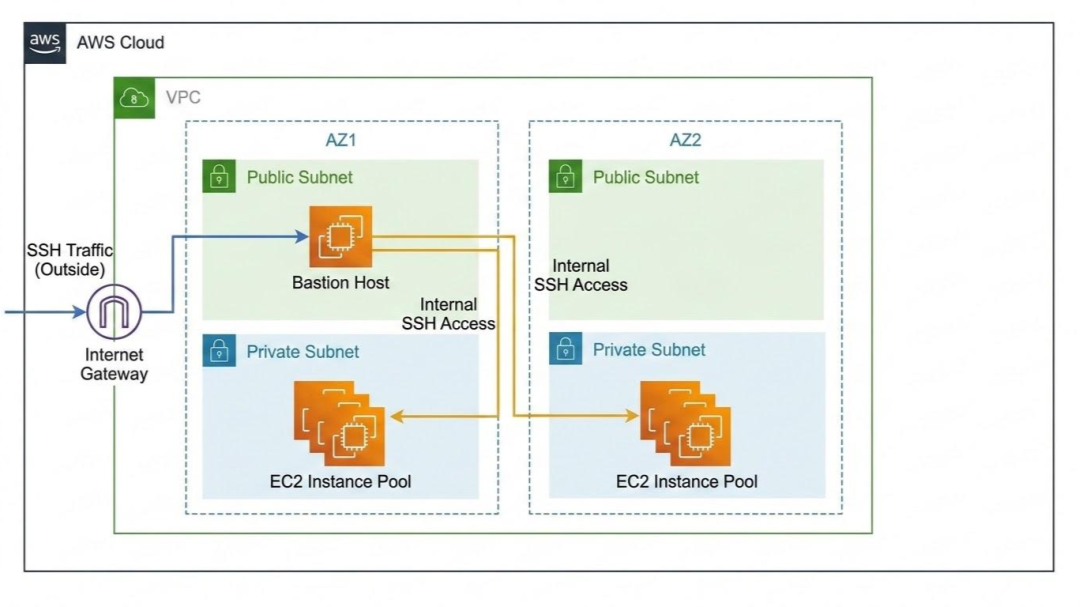
Here is what that flow looks like in practice:
- The Entry Point: You deploy a dedicated Bastion EC2 instance inside a Public Subnet and assign it a public IP address.
- The Firewall Hole: You configure its Security Group to allow inbound traffic on Port 22 (SSH) from the public internet (or, if you are being careful, a restricted set of corporate IP addresses).
- The Jump: You SSH into the Bastion over the internet. Once inside that terminal, you initiate a second SSH connection to reach your actual application servers sitting safely in the Private Subnet.
The glaring vulnerability here? Port 22 is open on the edge of your network, actively listening for connection attempts 24/7.
The SSM Session Manager Pattern (Identity-Centric)#
SSM Session Manager completely flips this flow on its head. Instead of you reaching in through the firewall, your servers reach out to AWS.
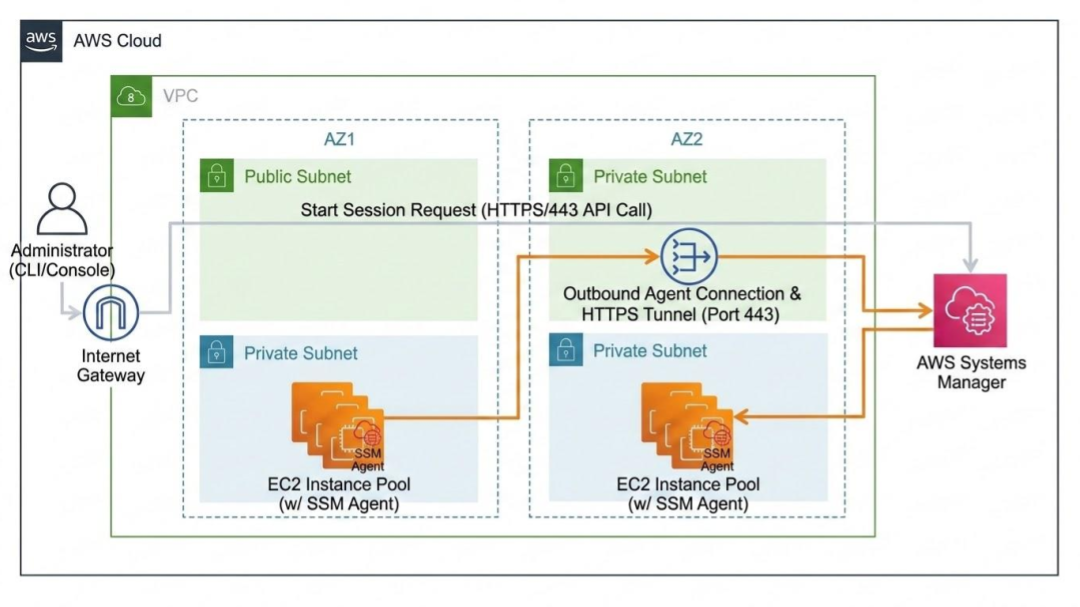
Here is how the modern approach works:
- No Inbound Ports: Your application EC2 instances live entirely inside the Private Subnet. You do not need to open Port 22. In fact, your instance's Security Group can have absolutely zero inbound rules configured.
- The Outbound Connection: A lightweight piece of software called the SSM Agent (which comes pre-installed on most modern Amazon Linux and Ubuntu AMIs) runs continuously on your instance. This agent establishes an outbound, encrypted HTTPS connection (Port 443) directly to the AWS Systems Manager APIs.
- The Secure Broker: When you want to connect to a server, you don't use an IP address or an SSH key. You authenticate with AWS using your IAM credentials (either in the AWS Console or your local CLI). AWS verifies your permissions, and then routes your terminal session through that already-established HTTPS tunnel.
A Quick Comparison#
By removing the network entry point, you eliminate the risk of port scanning, brute-force attacks, and leaked keys in one swift move. Here is how the two approaches stack up:
| Feature | Bastion Host | SSM Session Manager |
|---|---|---|
| Authentication | Static SSH Keys (.pem files) |
IAM User Credentials & MFA |
| Inbound Ports | Port 22 must be open | Zero inbound ports required |
| Infrastructure Required | Dedicated EC2 instance(s) | No dedicated EC2 infrastructure |
| Attack Surface | Public internet edge | Private, internal AWS network |
Next, let's look at the concrete benefits your engineering and security teams will see the moment you make the switch.
Core Benefits of Making the Switch#
Moving away from jump boxes isn’t just a neat architectural trick—it solves some of the most frustrating security and operational headaches engineers face daily. When you adopt SSM Session Manager, the benefits ripple across your entire infrastructure team.
Here is what you gain the moment you make the switch.
Elimination of Inbound Attack Surfaces#
First and foremost, let's talk about sleeping better at night. If you have ever looked at the authentication logs of a public-facing server, you know that bots and script kiddies relentlessly scan the internet, attempting to brute-force open SSH ports.
By utilizing Session Manager, you can completely close Port 22. Your servers become effectively invisible to the outside world. Hackers cannot attack a port that does not exist on a server they cannot route to.
Centralized Identity & Access Management (IAM)#
Say goodbye to the anxiety of managing static .pem files. Traditional SSH keys are notoriously difficult to track, rotate, and revoke. Instead, Session Manager ties server access directly to AWS IAM.
You control who can access which instances using IAM policies and tags. This unlocks some massive operational wins:
- Enforced MFA: You can easily require Multi-Factor Authentication before an engineer is allowed to start a session.
- Instant Offboarding: When an employee leaves the company or changes roles, you simply update or revoke their IAM permissions. Their server access vanishes instantly across your entire fleet—no frantic key rotations required.
Undeniable Audit Trails#
If your company goes through compliance audits like SOC 2 or ISO 27001, Session Manager is going to be your best friend. With traditional SSH, tracking exactly who ran what command is difficult and prone to tampering.
Session Manager natively integrates with AWS CloudTrail, automatically logging exactly who started and ended a session, and on which instance. Want to take it a step further? You can enable Session Logging to stream every single keystroke and terminal output directly to a secure Amazon S3 bucket or Amazon CloudWatch Logs. If a server goes down, you can go back and read exactly which command caused the crash.
Seamless Cross-Platform Capability#
Session Manager isn’t just a win for your Linux fleet. If you manage Windows instances, you know the pain of securing RDP (Port 3389).
Session Manager works beautifully across operating systems. With the exact same IAM permissions and workflows, your engineers can drop into a native bash shell on an Ubuntu server, or an interactive PowerShell/CMD session on a Windows Server—all from the exact same browser window or CLI, and all without exposing a single inbound port.
Here is the fourth section. This is where we roll up our sleeves and get into the actual implementation. Since the order of these steps matters, we will walk through them sequentially.
Step-by-Step Implementation Guide#
Ready to get your hands dirty? The good news is that setting up Session Manager is surprisingly straightforward once you understand the moving parts.
Because we are ditching the public-facing jump box, we have to make sure our private server has the right permissions and network paths to securely "phone home" to AWS. Here is the step-by-step playbook to make it happen.
Step #1: Create and Attach the IAM Role: Authorizing the instance to talk to AWS APIs.#
Even though the server is running inside AWS, it does not inherently have permission to interact with AWS services. We need to explicitly grant it access.
- Open the IAM Console and create a new Role.
- Select EC2 as the trusted entity (this tells AWS that an EC2 instance will be assuming this role).
- Search for and attach the AWS-managed policy called
AmazonSSMManagedInstanceCore. - Name the role (e.g.,
SSM-Instance-Profile) and save it. - Finally, go to your EC2 Dashboard, right-click your target instance, select Security > Modify IAM role, and attach your newly created role.
Step #2: Configure Network Connectivity: The Private Subnet Dilemma.#
Here is the tricky part that catches a lot of people off guard: your instance is in a private subnet, but the SSM Agent needs to reach the public AWS Systems Manager endpoints. You have two ways to solve this:
- Scenario A: The NAT Gateway (Easiest). If your private subnet already has a route to a NAT Gateway, you are completely done. The SSM Agent will happily route its outbound traffic through the NAT to reach the internet and talk to AWS.
- Scenario B: VPC Endpoints (Most Secure). If your VPC is strictly isolated (no internet access at all), you must create AWS PrivateLink VPC Endpoints. You will need to create three specific interface endpoints in your VPC:
com.amazonaws.[region].ssm,com.amazonaws.[region].ssmmessages, andcom.amazonaws.[region].ec2messages. This keeps all traffic 100% on the internal AWS backbone.
Step #3: Verify the SSM Agent: The software that brokers the connection.#
For Session Manager to work, the SSM Agent must be running on the instance.
If you are using modern AWS AMIs like Amazon Linux 2, Amazon Linux 2023, or Ubuntu Server (18.04+), you get a free pass—the agent is already pre-installed and set to run on boot!
If you are using a custom or older AMI, you will need to install the agent manually. Once your server boots, the agent will automatically detect the IAM role from Step 1, use the network path from Step 2, and register itself with the Systems Manager console as an active, manageable instance.
Once these three steps are complete, you can go to the AWS EC2 Console, click your instance, hit Connect, choose the Session Manager tab, and instantly drop right into a secure browser-based terminal.
But what if your engineers hate browser-based terminals and want to use their local CLI? That leads us to the advanced workflows.
Advanced Workflows: Enhancing the Local Terminal Experience#
A common pushback from engineers is: "But I like using my native terminal, not the AWS Web Console!" Session Manager fully supports native terminal experiences.
Bypassing the AWS Console#
Engineers can install the Session Manager Plugin for the AWS CLI on their local machines (macOS, Windows, Linux). Once installed, starting a session is as simple as:
$ aws ssm start-session --target i-0123456789abcdefa
Tunneling Native SSH and SCP Over SSM#
You can route standard SSH connections through the SSM tunnel, allowing engineers to use their existing SSH config files and aliases without opening port 22. Add the following to your local ~/.ssh/config file:
# ~/.ssh/config file
# SSH over Session Manager
host i-* mi-*
    ProxyCommand sh -c "aws ssm start-session --target %h --document-name AWS-StartSSHSession --parameters 'portNumber=%p'"
Now, engineers can simply type ssh user@i-0123456789abcdefa or securely copy files using scp file.txt user@i-0123456789abcdefa:/tmp as if they were on the same network.
Port Forwarding via SSM#
Need to access an internal web UI (like a private Grafana dashboard) or a private database (Amazon RDS)? Session Manager can securely forward ports from the private VPC to your localhost:
$ aws ssm start-session \
    --target i-0123456789abcdefa \
    --document-name AWS-StartPortForwardingSession \
    --parameters '{"portNumber":["3306"], "localPortNumber":["3306"]}'
Can I use SecureCRT with SSM Session Manager?#
Yes, you absolutely can use SecureCRT with AWS SSM Session Manager. Because Session Manager supports tunneling standard SSH traffic via local proxy commands, you can configure SecureCRT to pass its connection through the AWS CLI, functioning exactly like OpenSSH's ProxyCommand.
Here is how you can configure it:
Step #1: Prerequisites#
Ensure you have the AWS CLI and the AWS Session Manager Plugin installed and authenticated on your local machine. You should be able to successfully run aws ssm start-session --target <instance-id> from your standard terminal before configuring SecureCRT.
Step #2: Configure the Global Firewall Proxy#
SecureCRT handles proxy commands through its Firewall settings.
- Open SecureCRT and navigate to Options > Global Options.
- Under the Firewall category on the left pane, click Add to create a new profile.
- Configure the profile with these specific values:
- Name:
AWS SSM Tunnel(or any descriptive name) - Type: Select
Local proxy commandfrom the dropdown. - Command:
aws ssm start-session --target %h --document-name AWS-StartSSHSession --parameters "portNumber=%p"(Note: SecureCRT uses%hto pass the hostname and%pto pass the port down to the CLI).
- Name:
- Click OK to save.
Step #3: Configure the Target Session#
Now, you can apply this proxy to any EC2 instance session.
- Create a new SecureCRT Session (or edit an existing one).
- Navigate to the SSH2 connection properties.
- Set the parameters:
- Hostname: Enter the target EC2 Instance ID (e.g.,
i-0123456789abcdefa). - Username: Enter the appropriate instance OS user (e.g.,
ec2-user,ubuntu, orssm-user). - Firewall: Select the
AWS SSM Tunnelprofile you just created from the dropdown menu.
Step #4: Save the session and connect.#
SecureCRT will silently invoke the AWS CLI in the background to establish the secure HTTPS tunnel, handle the key exchange, and drop you straight into your customized SecureCRT environment.
Financial & Operational Considerations#
Direct Feature Costs#
Here is the best part: AWS Systems Manager Session Manager is completely free to use. There are no per-user or per-instance licensing fees. (Standard rates apply only if you choose to store massive amounts of session logs in S3/CloudWatch).
Hidden Operational Savings#
By retiring your bastions, you instantly eliminate the EC2 compute, EBS storage, and potential Elastic IP costs of running dedicated, highly available jump boxes across multiple availability zones.
Architectural Trade-offs#
If you opt for Scenario B (Strict Private Isolation), be mindful that VPC Endpoints carry an hourly charge plus data processing fees. You will need to calculate whether the cost of running interface VPC Endpoints outweighs the data processing fees of a standard NAT Gateway—though for high-security environments, the peace of mind is usually worth the premium.
Wrapping up#
Replacing traditional bastion hosts with AWS Systems Manager Session Manager is not just an infrastructure modification; it is a fundamental leap toward a Zero Trust architecture in AWS. By shifting from perimeter-based network security to identity-based access control, you drastically reduce your attack surface while simultaneously improving developer experience and compliance auditing.
The Call to Action: Today, challenge yourself to audit your current AWS environments. Identify those lingering bastion hosts, evaluate your IAM readiness, and sketch out a migration path. It's time to close port 22 for good.

Indika Kodagoda
Indika Kodagoda is a Lead DevOps Engineer, AWS certification instructor, and the creator of CloudQubes. He specializes in cloud infrastructure, automation, and modern Ruby on Rails development. When he’s not deploying code or mentoring aspiring engineers, he’s usually enjoying nature and cycling local gravel paths.